
Getting started
Training Today helps you understand your readiness and shape your training around it. Your Readiness to Train score is available free; Premium adds adaptive workouts, planning and deeper insights. This guide covers version 6. Some options depend on your purchase, device and software version.
- Install Training Today on your iPhone and paired Apple Watch. Check the App Store listing for current compatibility.
- Open the app and review the Apple Health permission requests. Training Today needs access to the relevant health data to calculate readiness. Allow workout scheduling if you want to send supported sessions to Apple Watch.
- Wear your Watch regularly so Apple Health has readings to work with. A new setup may need more data before useful history appears.
- Start with Readiness. If you have Premium, open Workouts to explore a session or set up Your Week.
If no score appears, see missing readiness data in the FAQs.
Readiness and progress
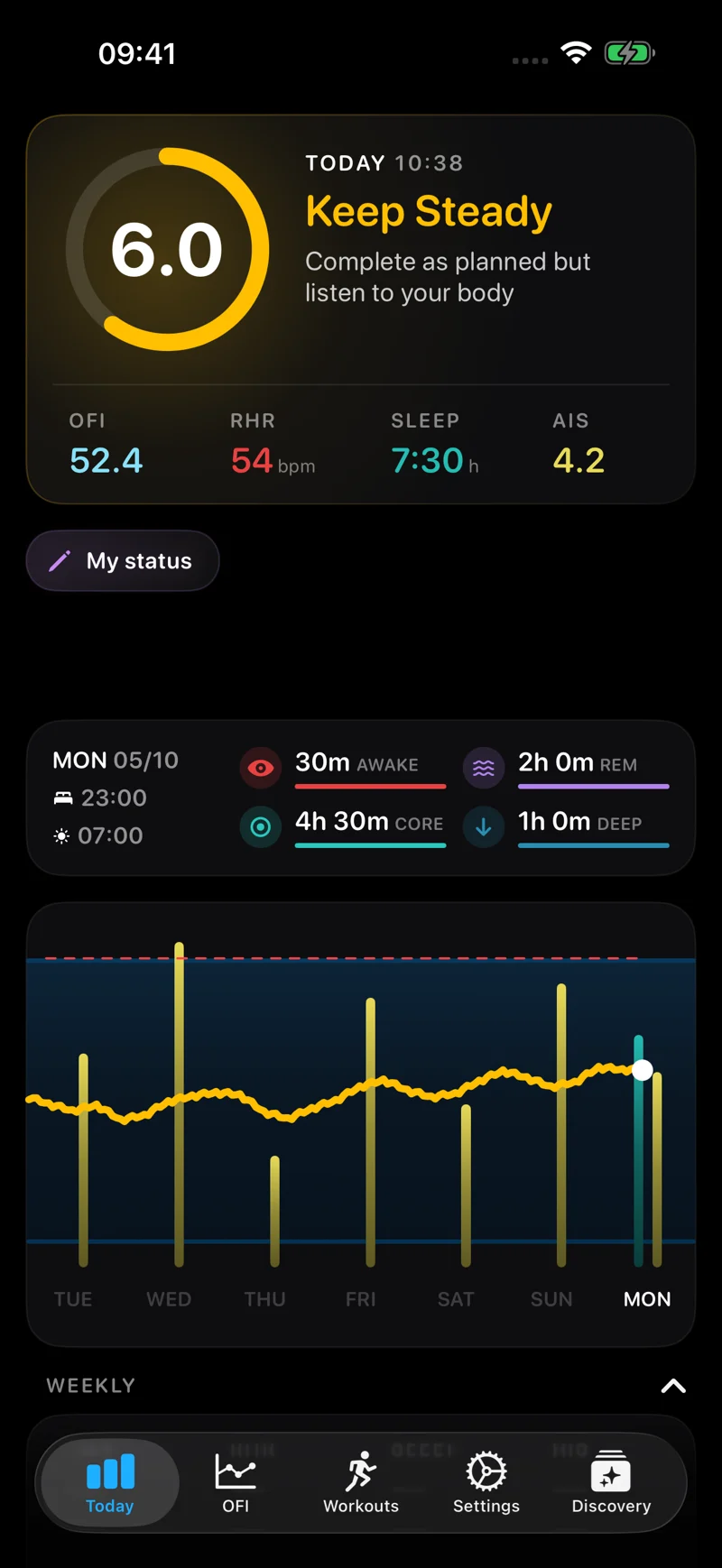
Your Readiness to Train (RTT) score uses heart rate variability (HRV) readings from Apple Health and your personal baseline. It changes as new data becomes available. Use it alongside how you feel, your recent training and the purpose of today's session.
The score is a guide to training readiness. You can adjust the challenge of a suggested workout, or choose a relaxed or rest day.
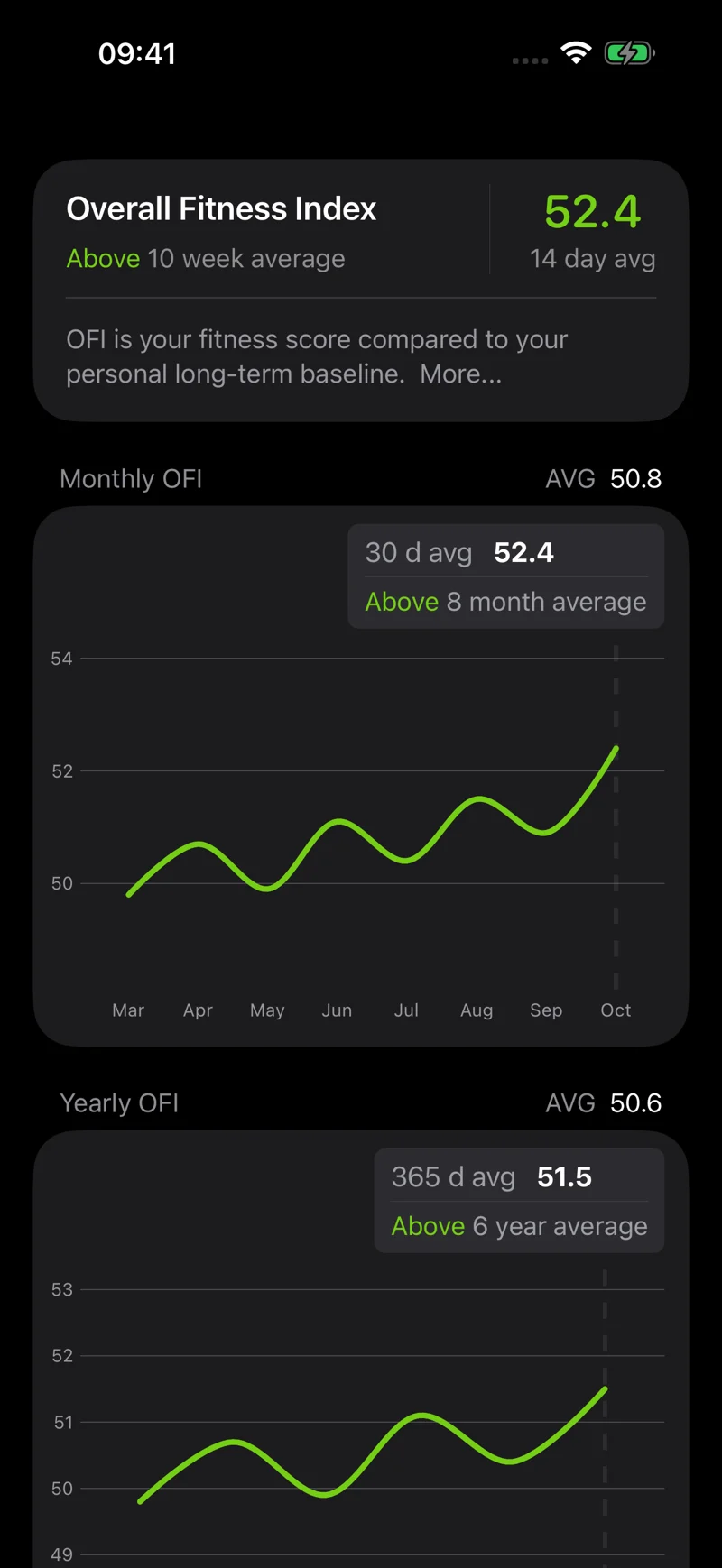
Explore the charts to see readiness and HRV over time. The Overall Fitness Index (OFI) is a personal HRV-based trend indicator, rather than a direct measurement of performance or VO2 max. Workout Analytics lets you review recorded activities; weekly training summaries help you compare completed and remaining training.
Activity Intensity Score (AIS) describes training load. It is separate from RTT: one describes activity demand, while the other helps you assess readiness. Comparing trends is more useful than expecting them to change together immediately after every workout.
Choosing today's workout
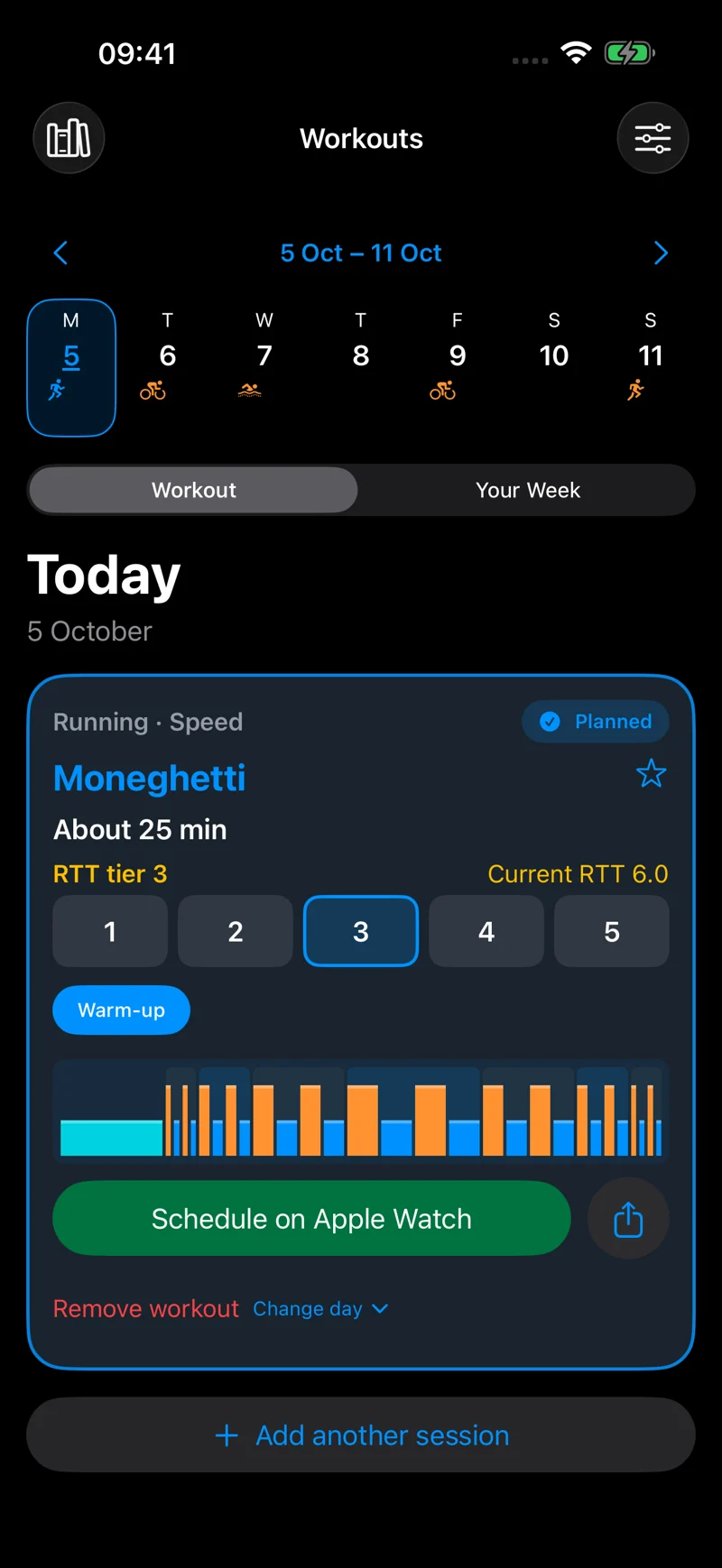
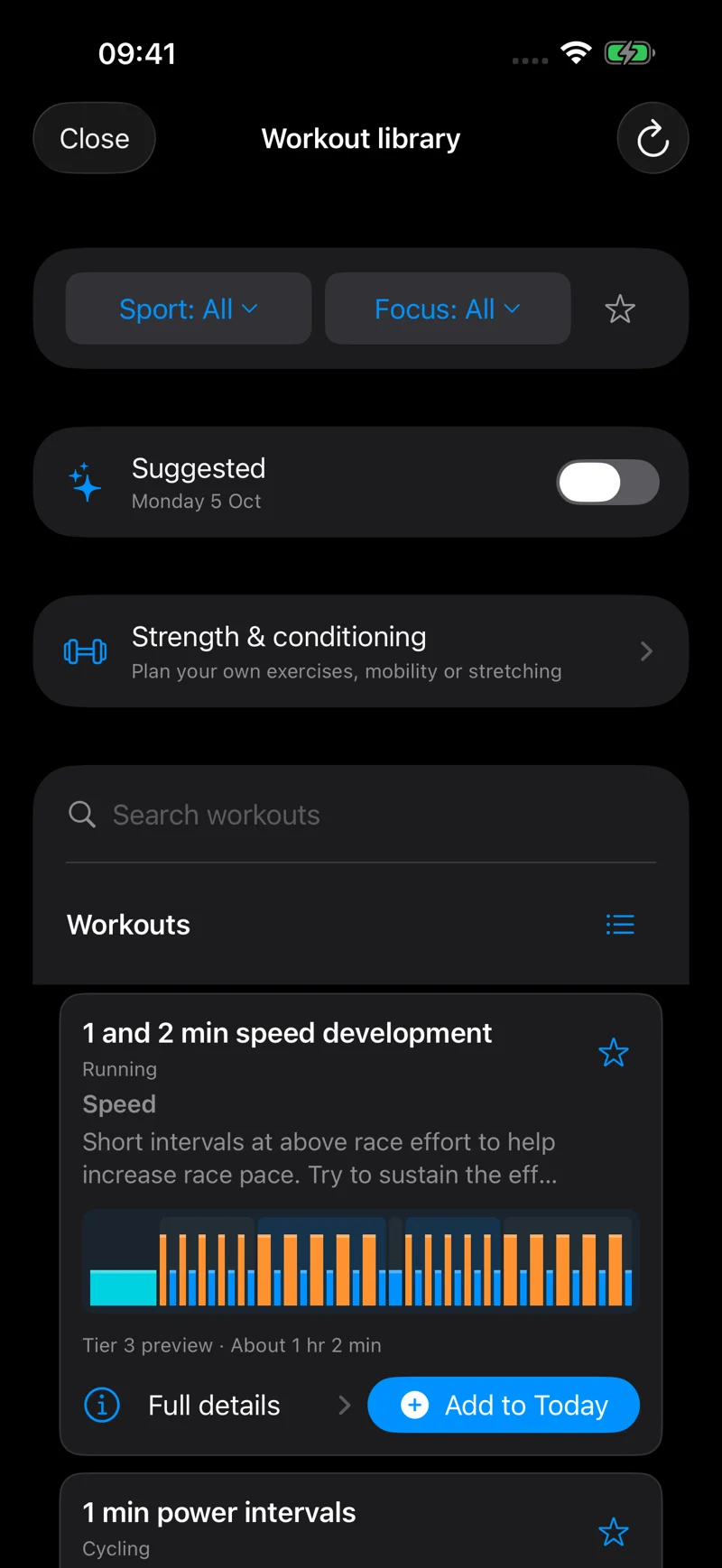
Open Workouts, then use the Workout view to review the selected day. Browse the suggested sessions or open the Workout Library. You can filter the library by sport and training focus, search by name and keep favourites.
Review the session's purpose, estimated duration and workout profile. The suggested RTT tier sets a challenge level; you can adjust it before choosing the session. Where offered, Shorter selects a shorter variant. Duration estimates for distance-based sessions depend on your training pace settings.
Use Change workout to explore alternatives. Choose a session to keep it in your plan. Browsing an alternative or changing a preview does not itself mean the workout has been scheduled or sent elsewhere.
To send a supported session, review Workout destinations…. Apple Watch needs scheduling permission. ROUVY needs a connected account and a supported cycling workout. Check the delivery status after confirming your choice.
If your day changes, use Change day, or Let Training Today suggest again when you want to return the slot to suggestions. Review how you feel before starting, even if you previously accepted a session.
Planning Your Week
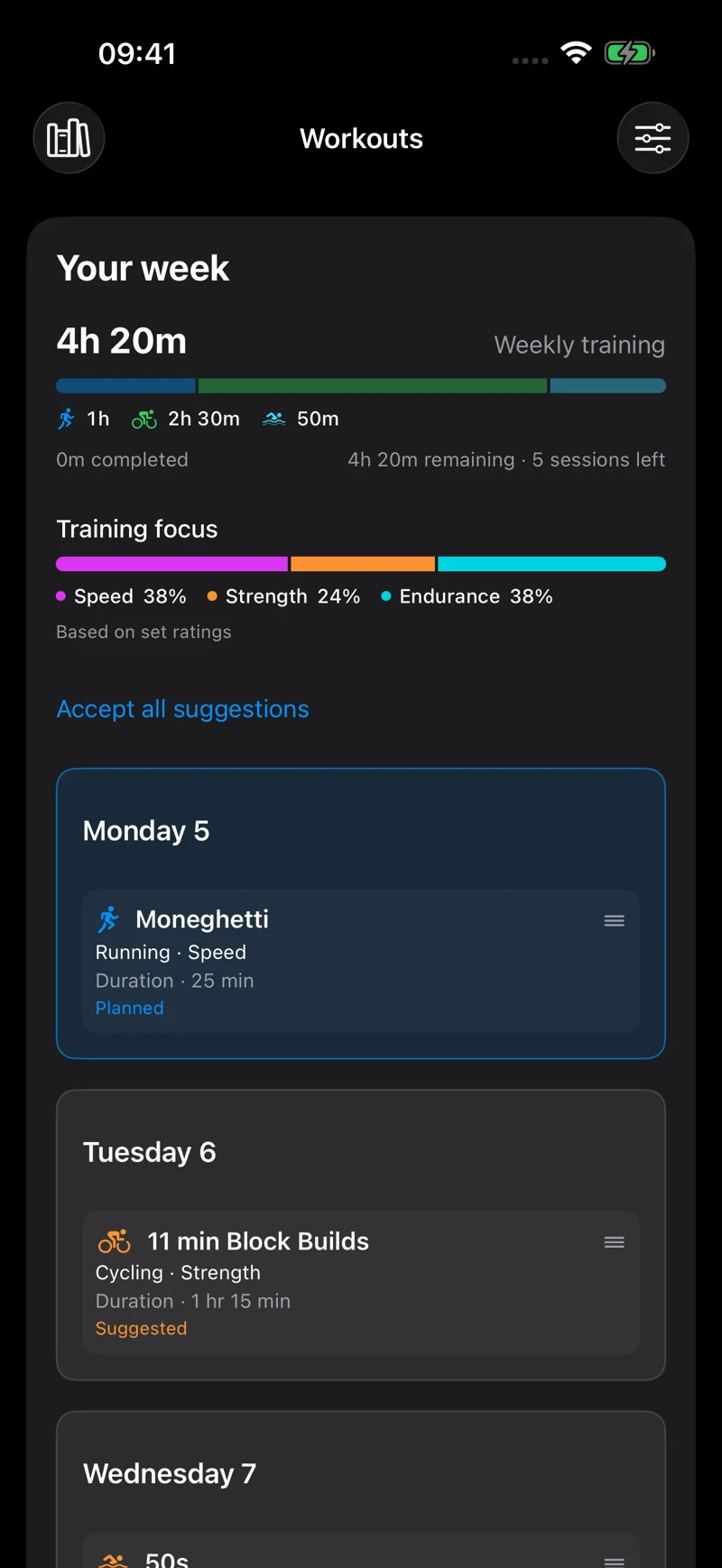
In Workouts, select Your Week. The summary shows training time, the sport mix, completed and remaining training, and the balance of speed, strength and endurance based on workout set ratings.
Open Training preferences using the sliders button. Choose your sports, available days and training preferences, then save. Suggestions use those preferences; selecting an available day does not require a workout on every such day.
Review suggestions individually, or use Accept all suggestions after checking the whole week. You can move eligible sessions to another day. Already chosen sessions are kept when preferences refresh the suggestions; turning suggestions off removes unaccepted suggestions while keeping chosen and completed workouts.
Use Day options to reflect a day when you cannot train, want rest or prefer a more relaxed day. Existing chosen sessions may need your attention when your availability changes.
The estimated weekly time is a planning aid. Completed training and planned sessions have different statuses; choosing a workout does not mark it completed. Event preferences can influence the session mix. Automated progression and tapering are not yet available.
Custom sessions and strength
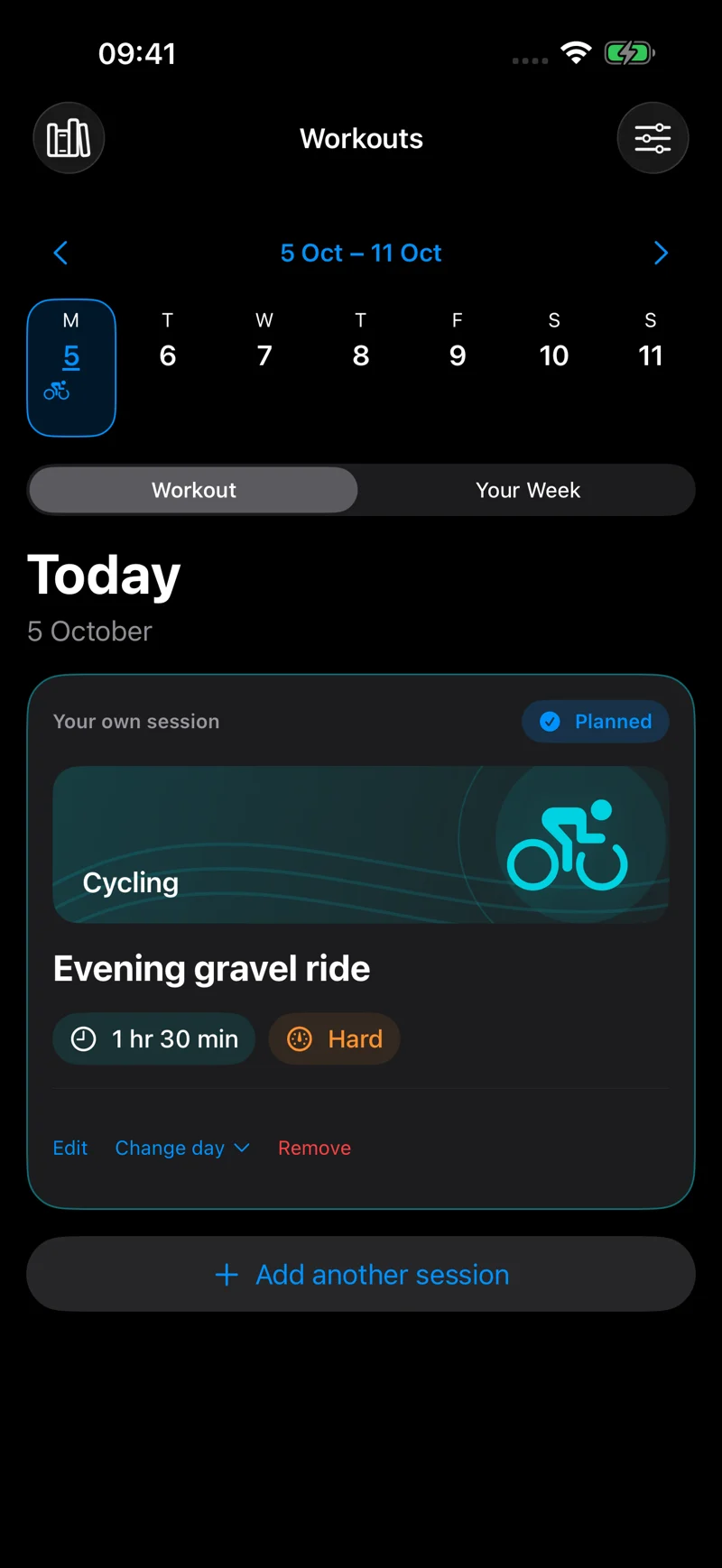
Use Add session to include training of your own. Give a custom session a name, sport and duration, and add the available optional details. Its time counts toward your weekly training; suggestions adjust around it while its name and duration stay as you set them.
Use Edit to change your own session or Change day to move it. A custom session records your plan; it does not automatically create a prescribed interval workout.
Strength & conditioning lets you schedule your own exercises, mobility or stretching. It contributes to estimated weekly time and is sent to Apple Watch when added. Review the session on your Watch before training.
Apple Watch and widgets
For a structured workout, choose Apple Watch as a destination and grant scheduling permission. Confirm the phone reports it as scheduled, then check the workout on the paired Watch. Supported structured workouts depend on device and software compatibility.
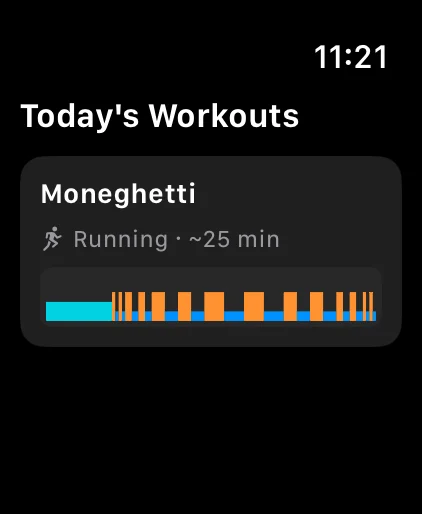
Readiness complications give you a quick view of RTT from your Watch face. Today's Workout is also available in the Watch Smart Stack: open the Smart Stack, touch and hold, then choose + → Training Today → Today's Workout. Tap it to open the Watch app's Workouts page.
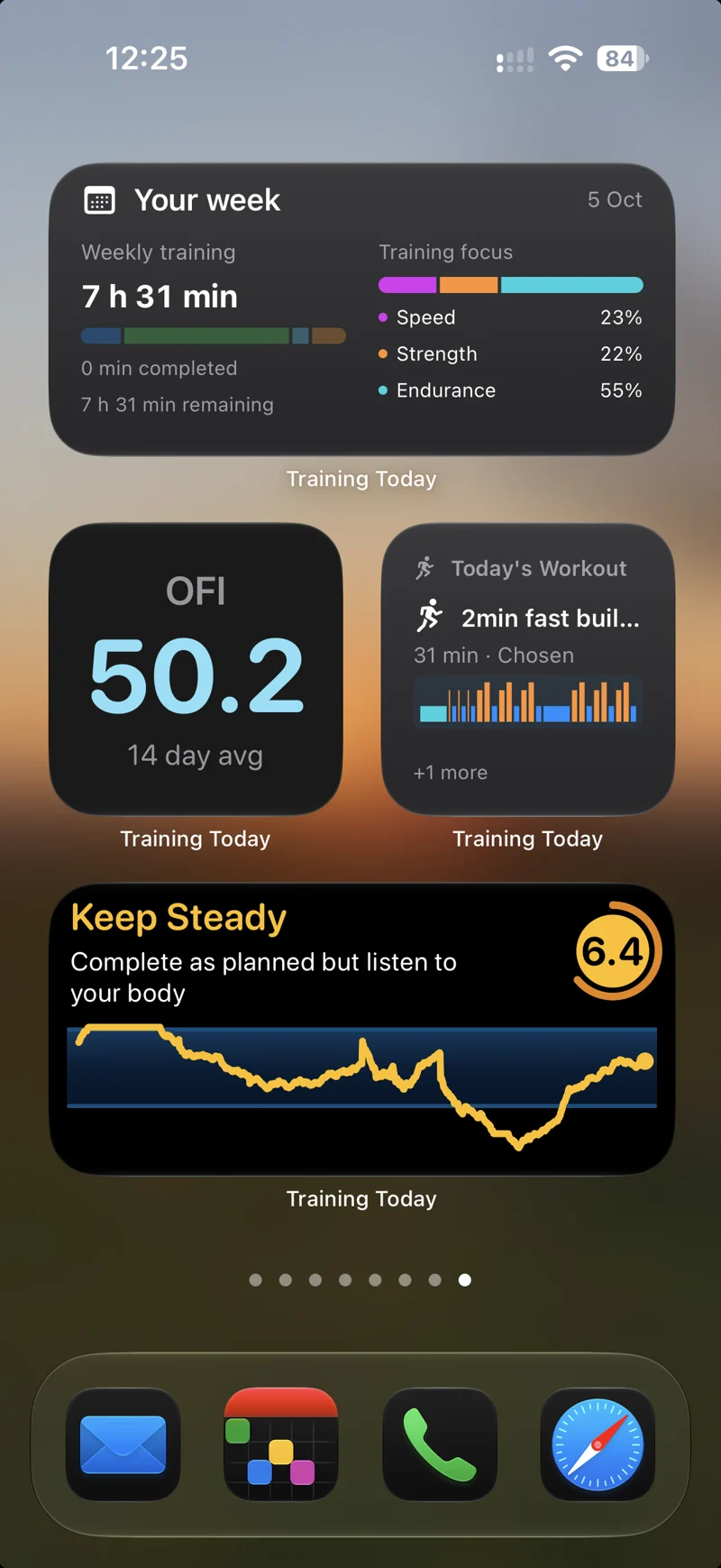
On iPhone, add Training Today from the widget gallery. Today's Workout shows the day's upcoming sessions; Your week shows the training summary. Available Home Screen and Lock Screen layouts vary by widget. Tap a workout widget to open the relevant view in the app.
Widgets refresh on a schedule controlled by Apple. Open Training Today after changing your plan if a widget is behind. At a new day, a widget may ask you to open the app before displaying the new plan. See widget troubleshooting.
TrainingPeaks and ROUVY
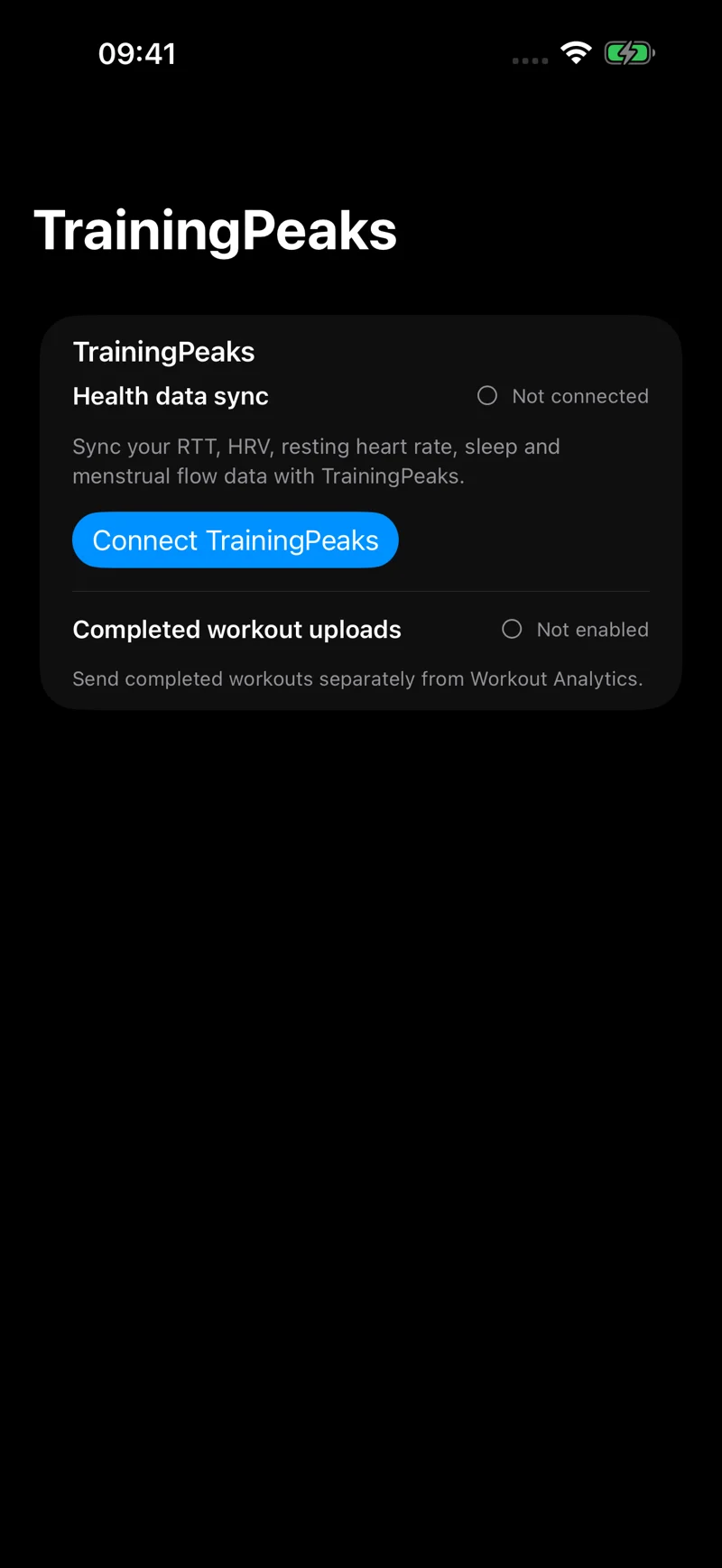
With Premium, TrainingPeaks can receive readiness and health metrics, with optional daily sync. Connect your account in the app's TrainingPeaks settings and grant the requested access. Completed workout upload is a separate action from Workout Analytics and requires workout-upload permission. Sharing readiness does not mean a planned workout has been uploaded.
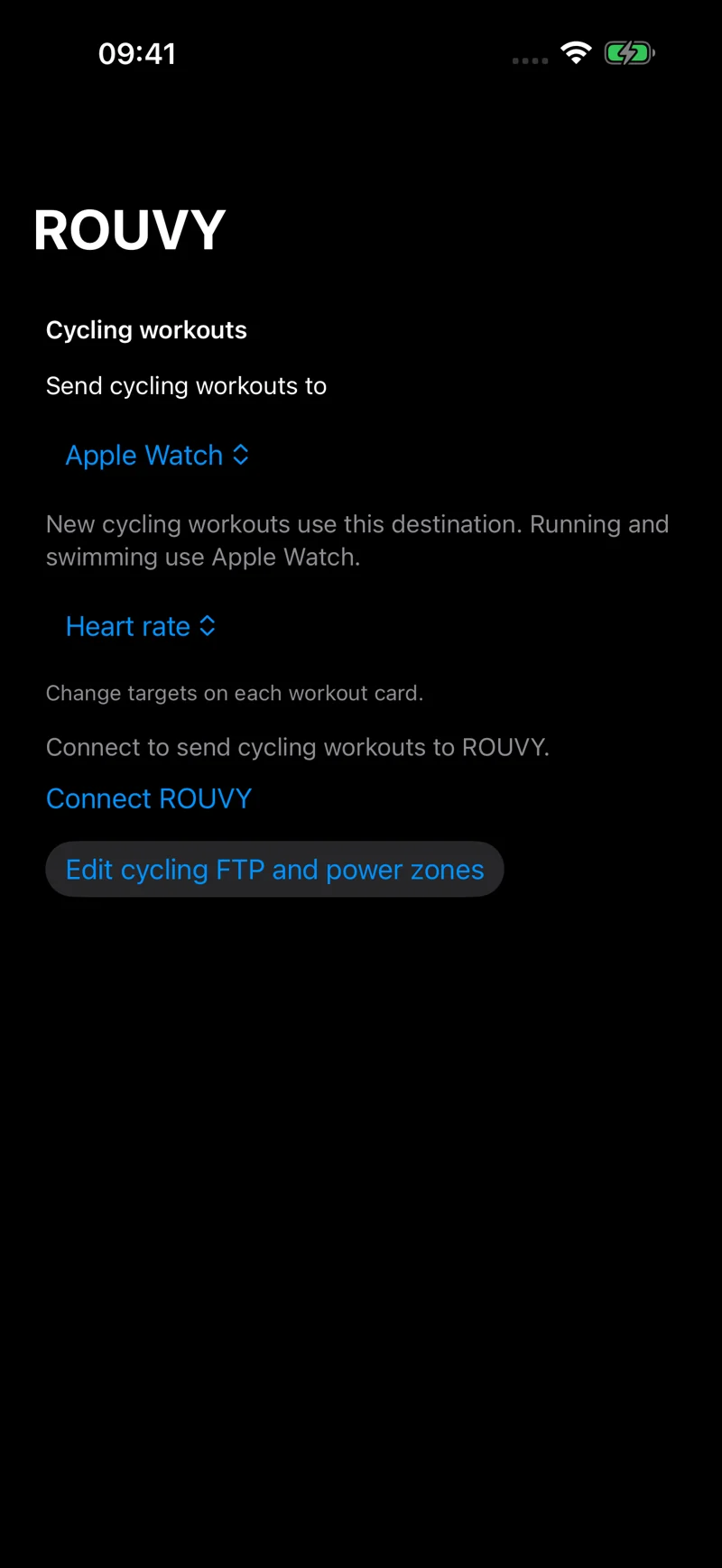
ROUVY receives supported cycling workouts. Connect your ROUVY account, then choose ROUVY in Workout destinations…. Power-based targets require your cycling power settings; keep FTP consistent between Training Today and ROUVY. Supported alternatives include free ride with heart-rate cues.
Check the delivery status in Training Today and confirm the workout is available in ROUVY before starting. Copies already sent to ROUVY remain there if you later reset your Training Today plan.
Where available, Share workout exports a FIT or ZWO file. The formats and target options depend on the session. File export is separate from delivery to a connected account.
Settings and training preferences
Readiness settings and training preferences serve different purposes. Readiness settings include adaptations and the way your score is presented; training preferences shape the sessions suggested for your week.
Review sleep, fatigue and reported-illness options in the app. Sleep adaptation needs suitable sleep history. Older help pages refer to intensity and smoothing controls: use the labels and explanations in your installed version rather than copying a setting intended for an older release.
In Training preferences, review your sports, routine, training focus and event preferences. Paces are used to estimate workout time, not as targets you must hit. Training zones lets you review available heart-rate zones and configure cycling power zones from FTP.
Saving preferences refreshes suggestions while keeping chosen workouts. Read the confirmation carefully before using Reset and remove existing workouts: it removes current and future choices and their Apple Watch schedules, then rebuilds the plan. Past and completed workouts, unavailable days and rest days stay; existing ROUVY copies remain.
Purchases and your data
Training Today is free to download. Premium features are available through in-app purchases. Check the purchase screen for the current options, prices and any offers available to your Apple account.
Use the restore-purchases option in the app if an existing purchase is missing. Manage an Apple subscription in iPhone Settings → your name → Subscriptions. See purchase help before buying again.
Apple Health permissions control which health data Training Today can access. Review them in the Health app or your iPhone's privacy settings. Connected services need their own permissions; only connect a service when you want to share the supported data with it.
Read the privacy policy for how data is handled and the terms for purchase and service terms. If you need help, open support or email support@trainingtodayapp.com.